
If you have already booked your appointments for a PEMS event, and the event has parent notes enabled, then you can add notes to your appointments following the below instructions:
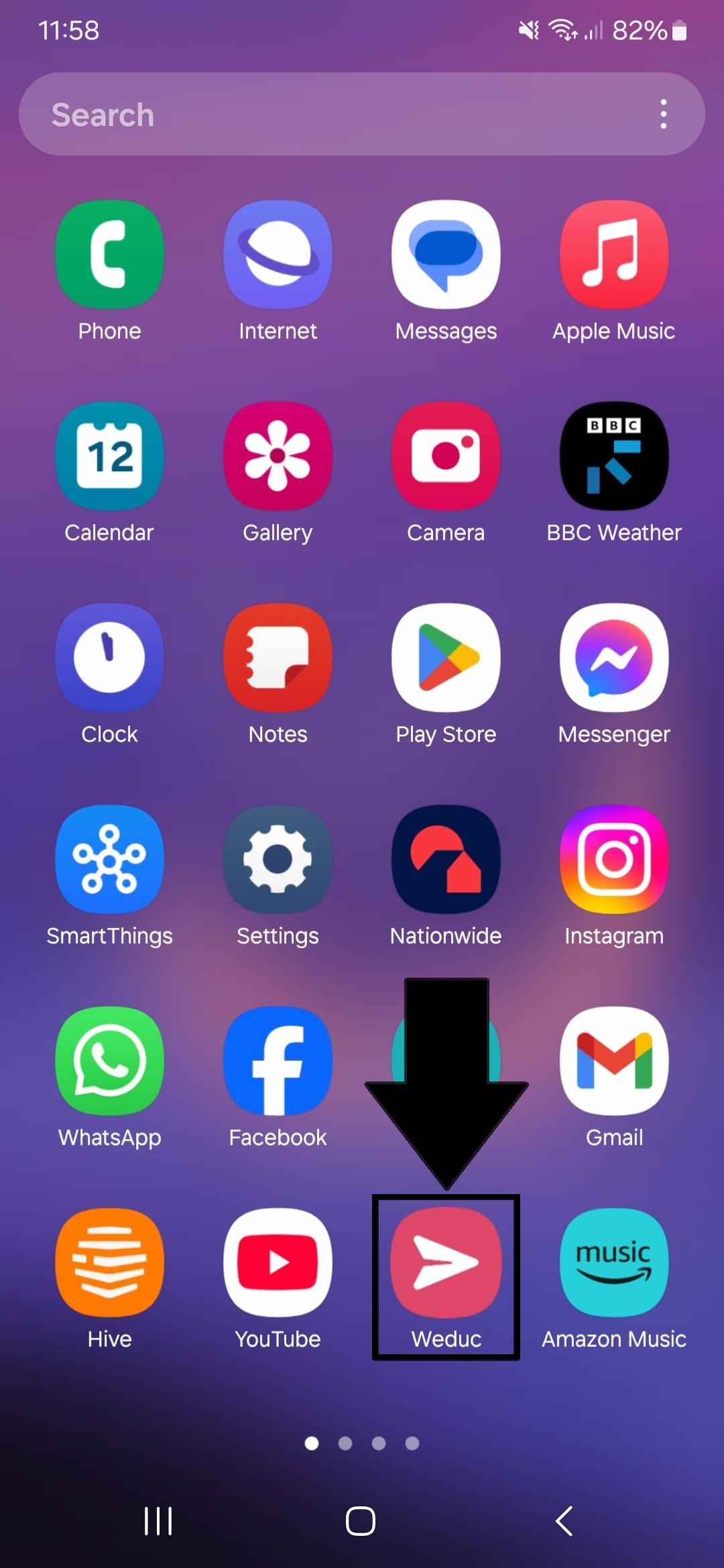
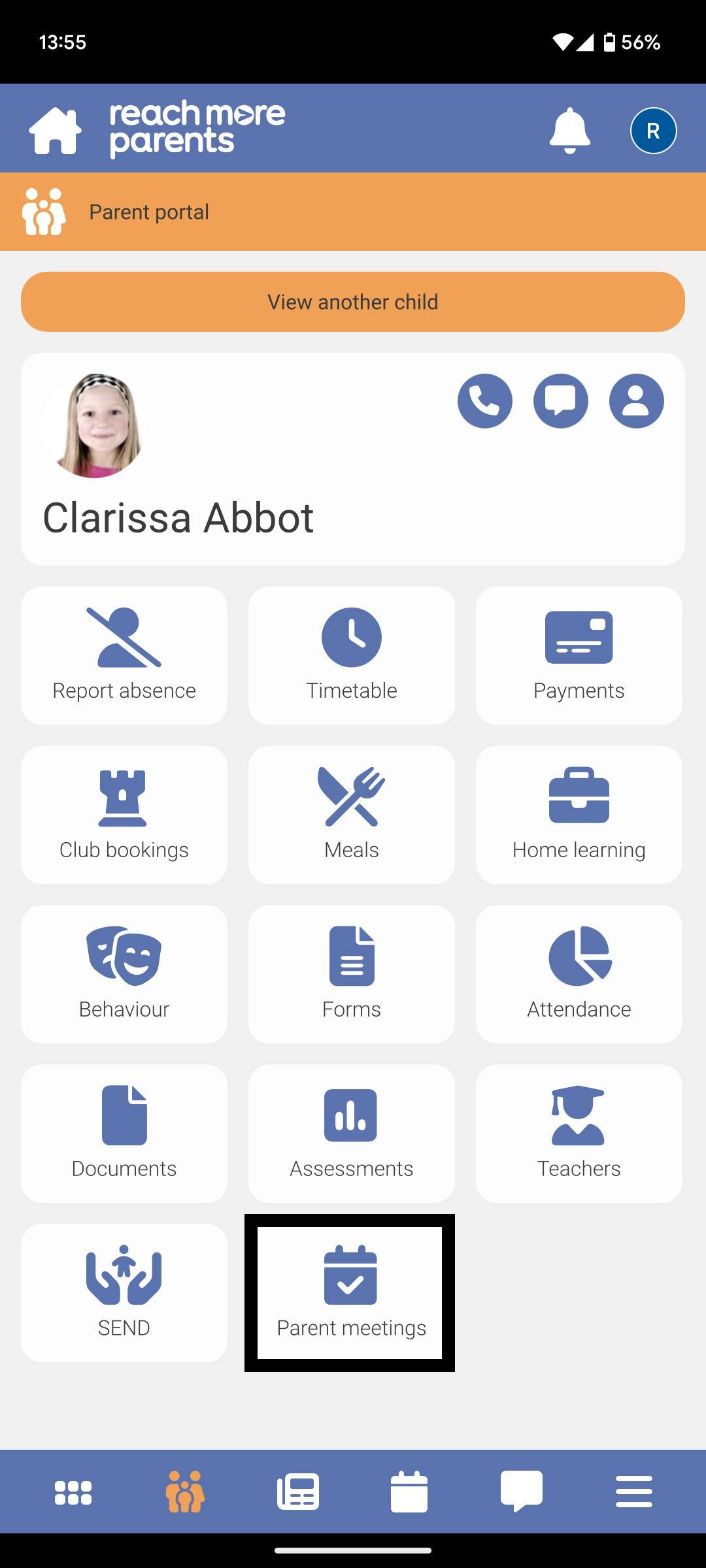
Firstly, you will need to access the Parent Meetings feature on the ReachMoreParents app from your device home screen:
1) Tap on the ReachMoreParents app on your device home screen
2) Login using your Parent login username and password
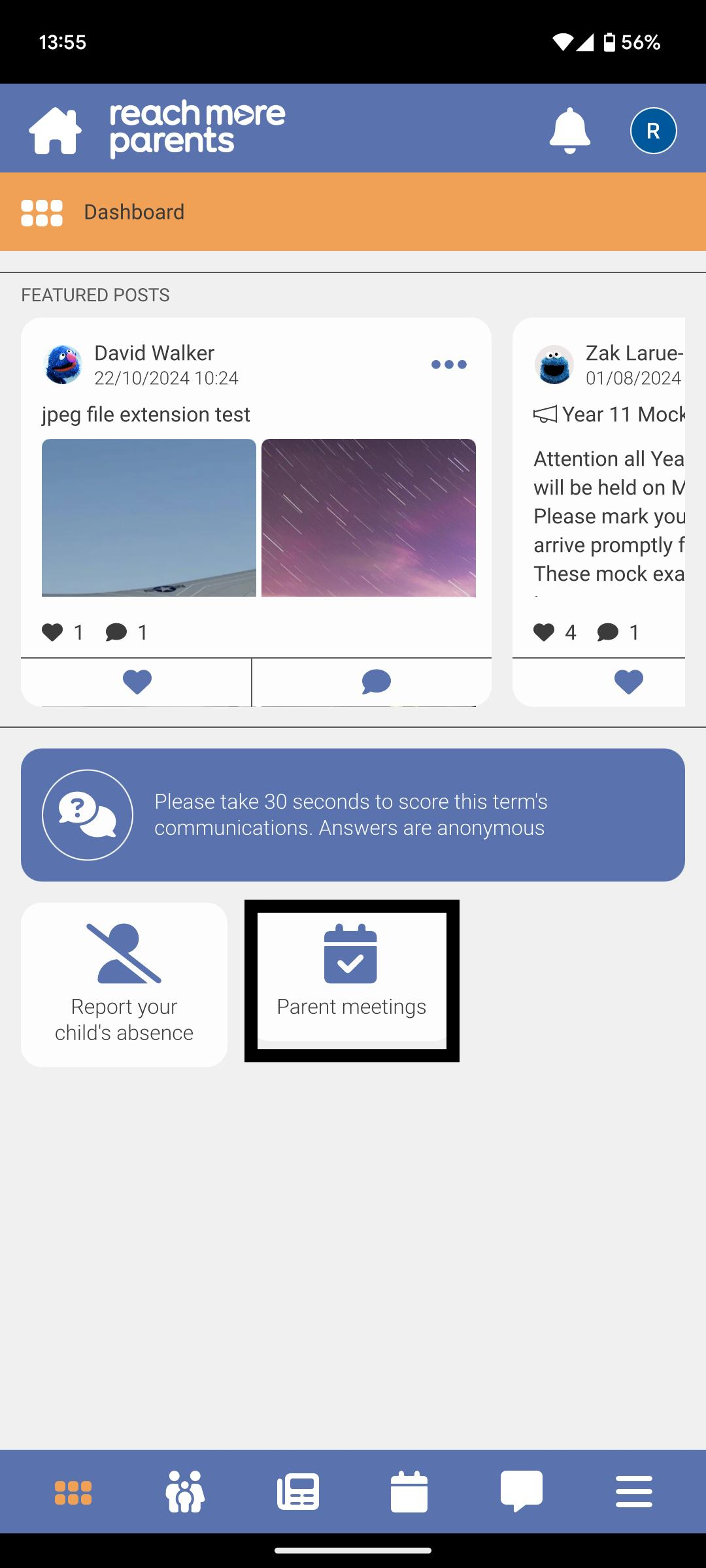
3) The "Parent meetings" tile will be present on the Dashboard if any eligible* events are available for the parent - (* Parent has at least one child associated with event, event is in the future or for the current day, the booking window is still open)
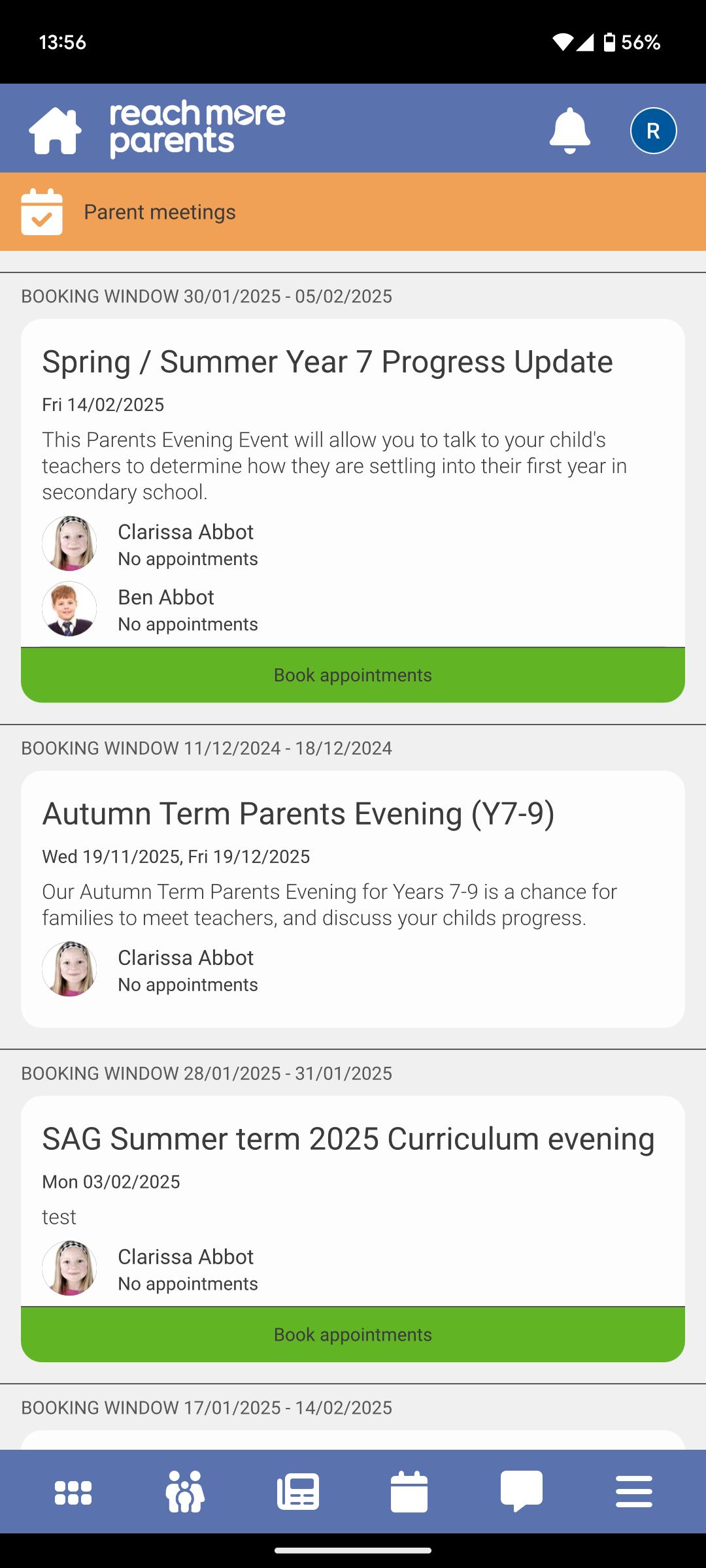
4) Tap on the Parent Meetings tile and any eligible* Parents Evening event(s) will be list in ascending event date order - (* Parent has at least one child associated with event, event is in the future or for the current day, the booking window is still open)
5) Alternatively, you can tap on the Parent Portal
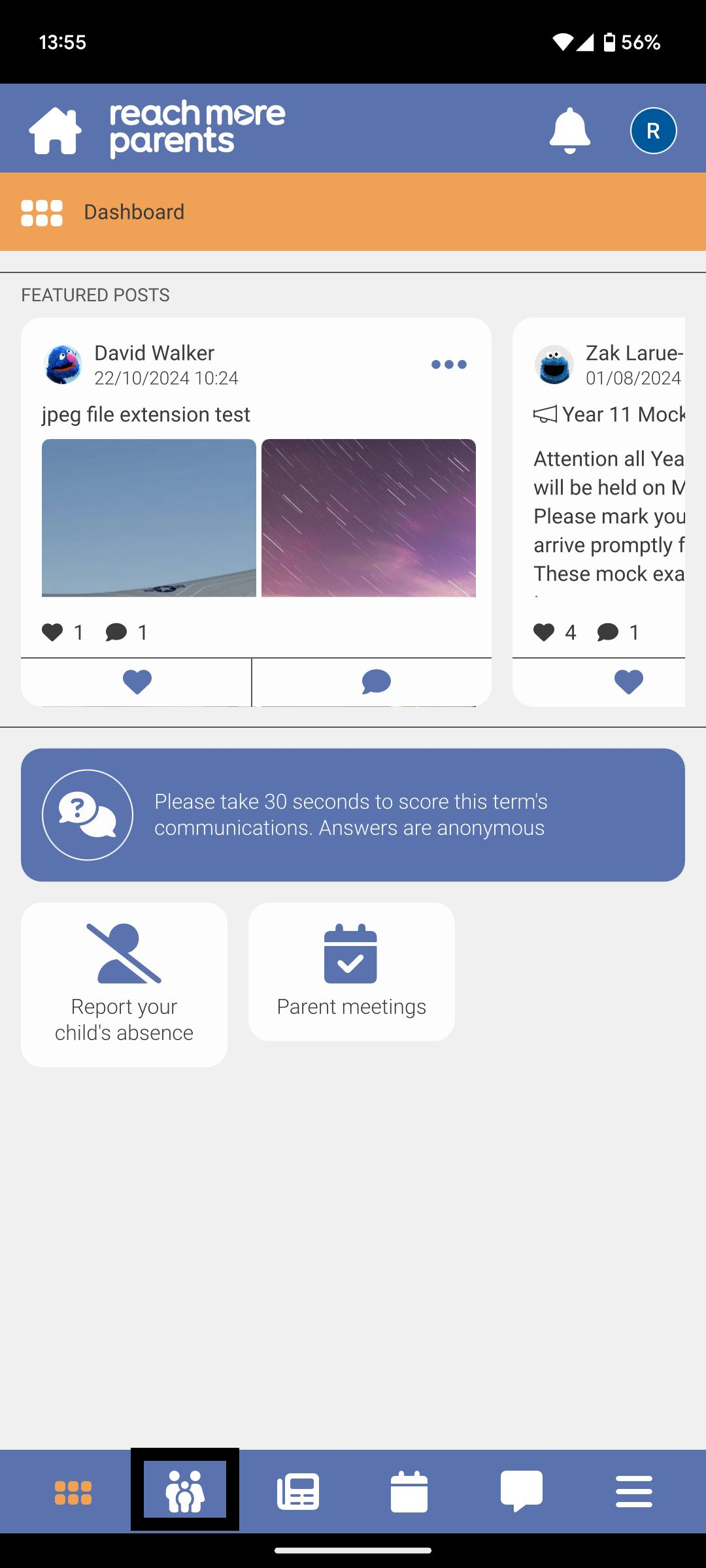
6) Then tap on the Parent meetings tile here to access your Parents Evening event(s)
Then carry on the rest of the process following the below steps:
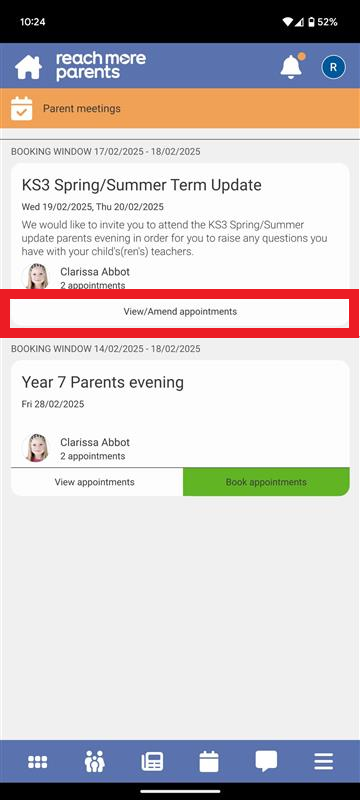
7) Tap "View/Edit Bookings"
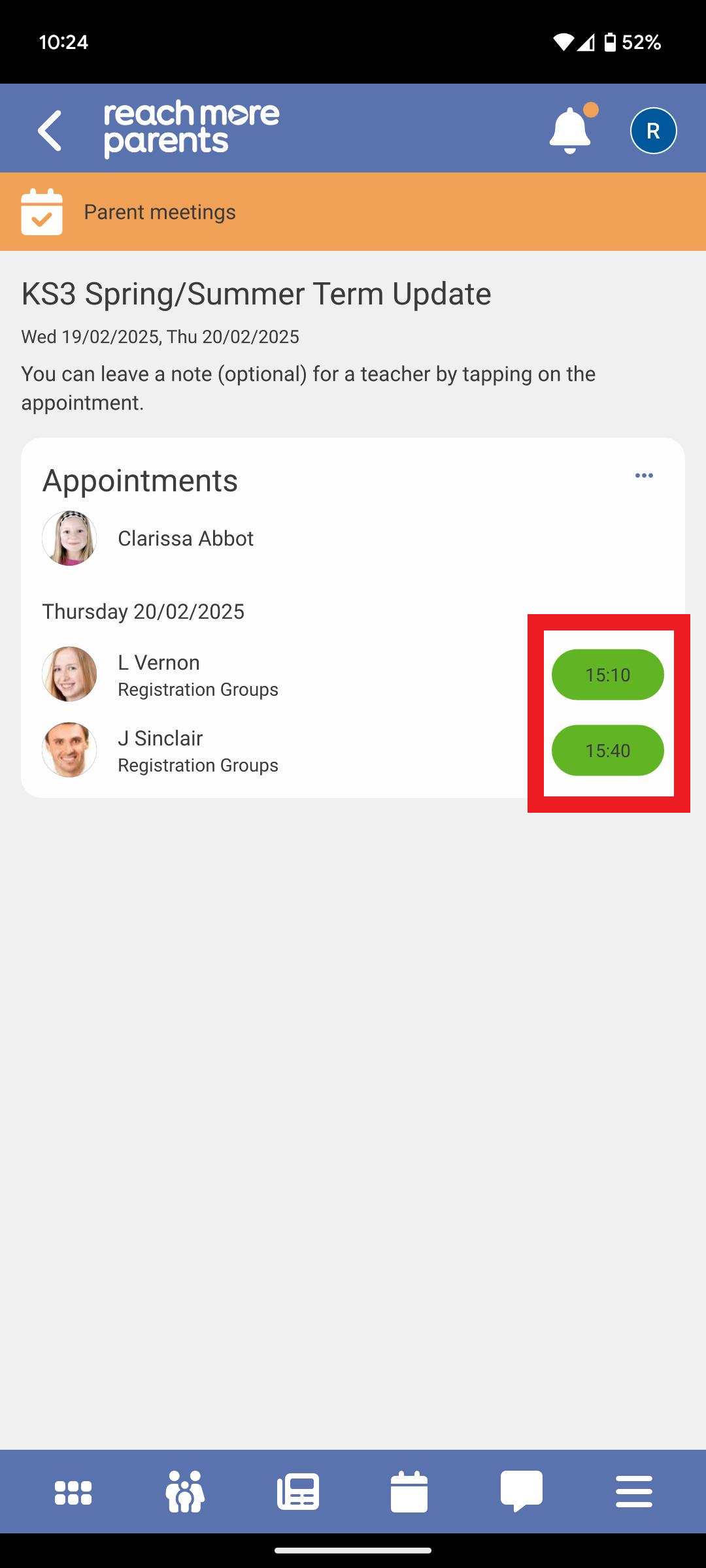
8) Tap on the green appointment pill that you need to add a note to
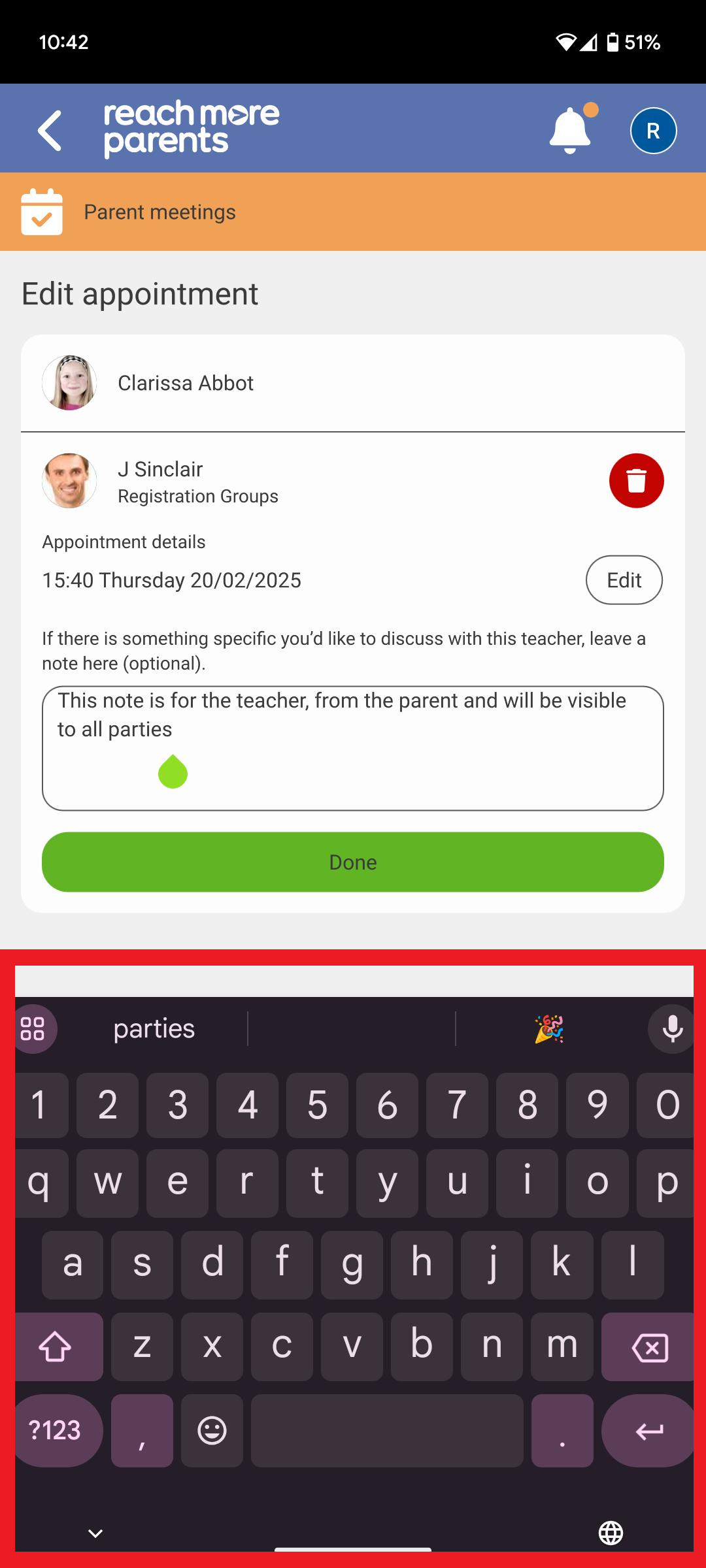
9) Tap on the "If there is something specific you'd like to discuss with this teacher, leave a note here (optional)" text field
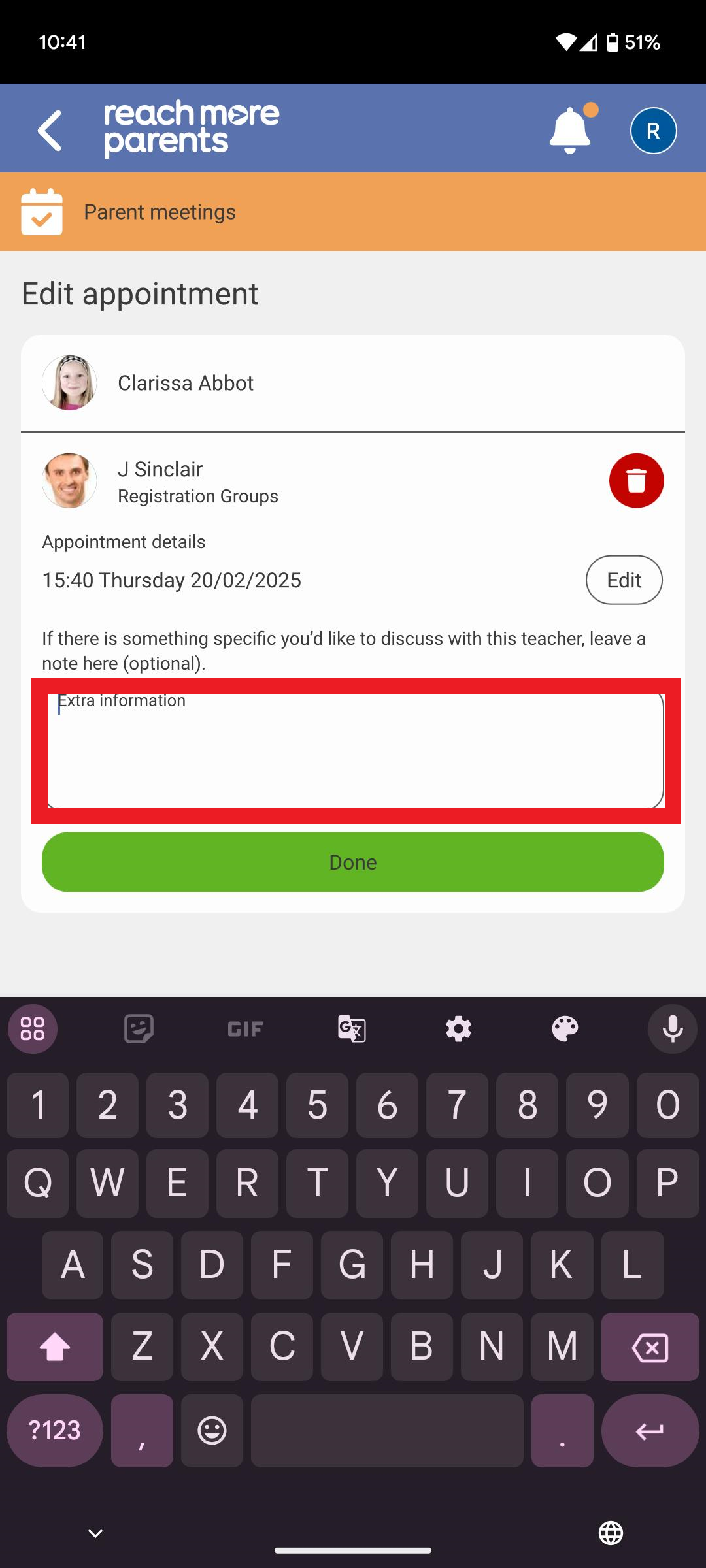
10) Type your note using your device keyboard
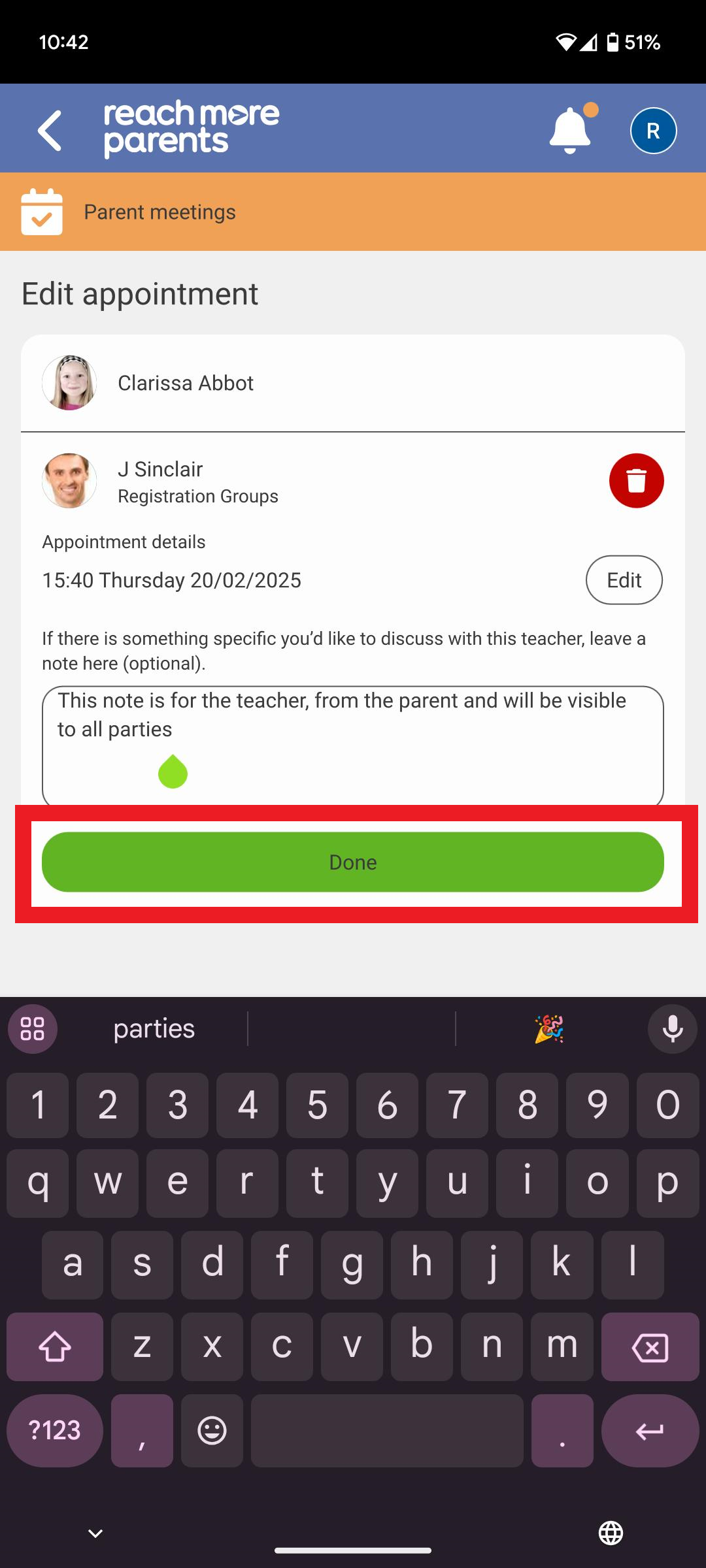
11) Tap on "Done" when you're finished with your note
If you need to edit your appointment time, follow the steps detailed in the following article here.