
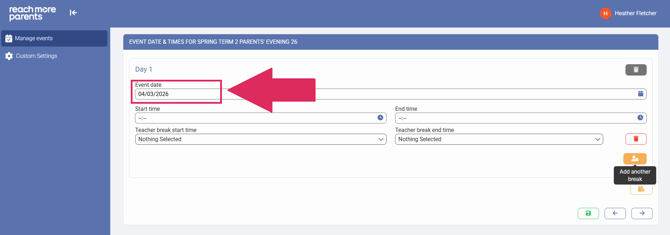
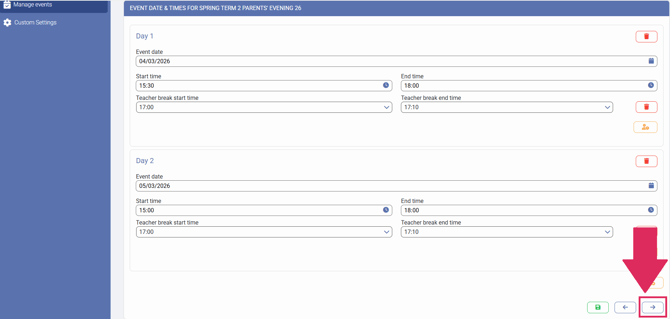
1) Click on the "Calendar" icon and select the "Event Date" from the Calendar selector (alternatively, you can type the date in DD/MM/YYYY format).
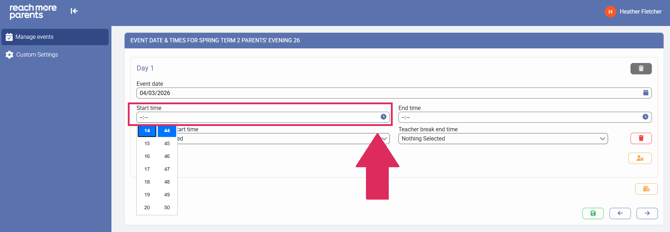
2) Click on the "Clock" icon in the "Start Time" field to select the time the Parent Event is starting at.
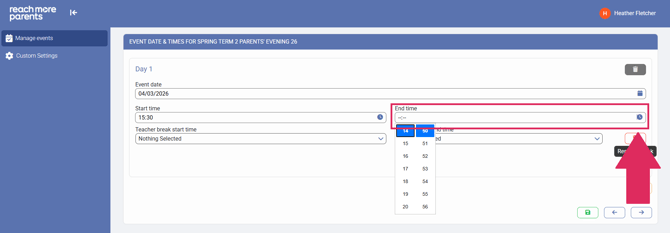
3) Click on the "Clock" icon in the "End Time" field to select the time the Parent Event is ending at.
4) Click on the "Teacher break start time" to choose when the Teachers' break is due to begin.
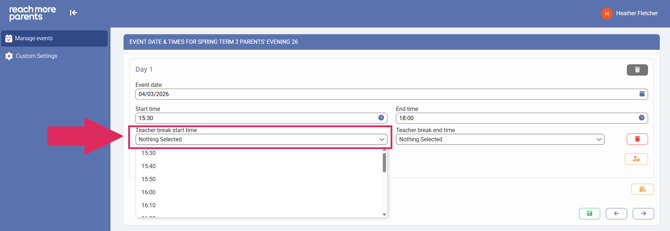
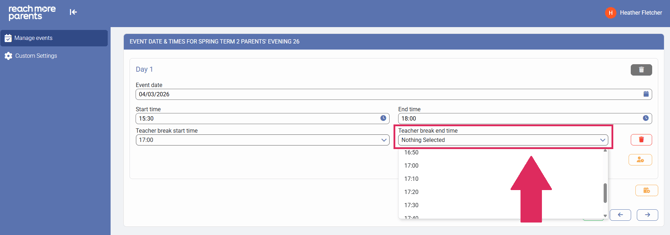
5) Click on the "Teacher break end time" to choose when the Teachers' break is due to end.
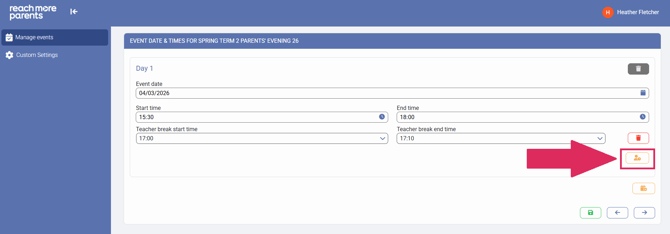
6) If you need to add another break within the same event date, click on the "Add another break" button and repeat steps 4 and 5 for this additional break.
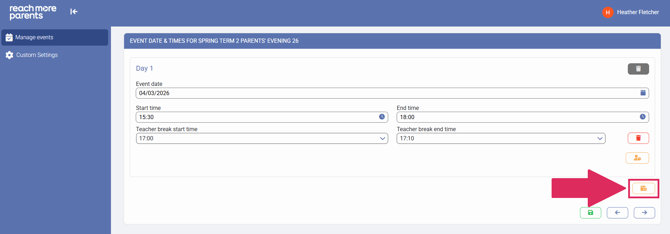
7) If you need to add another event date (if your Parent Event spans more than one day), click on the "Add another day" button (this should autofill to the next date).
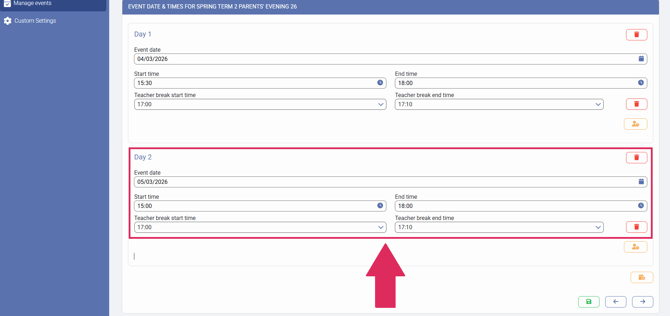
8) Repeat steps 2 to 5 for configuring the Event Time and Teacher Break settings.
9) When you're happy, click on "Next" to automatically save your changes and proceed to the "Appointment Settings" screen.
To continue creating or editing your event, follow the link here for instructions on how to configure the Appointment Booking Settings.