If you're creating a new event and you're not sure how to get to this point, read this article and re-join us here when you're ready to fill out the Classes & Teacher Settings phase of creating an event.
To make the creation of a PEMS event as simple as possible, we have automatically located all the Subject and Class groups for your chosen Year Groups from the Timetable information in your MIS. This means all the Subjects, Classes, Staff Members and Year Groups are all present and ready for you, you need only amend the differences if and where they appear.
We've also added your Registration Groups, House Groups and SEND Groups automatically too, you just need to add staff to them if you're wanting to book appointments for those Group Types. Or you can disable them with a click if you don't.
1) Choose whether your settings apply to all dates in the event (where your event spans more than one date, the settings you amend here will apply to all dates).
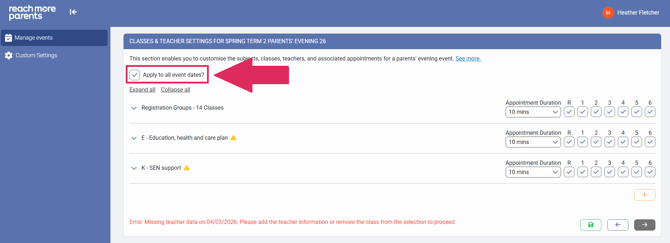
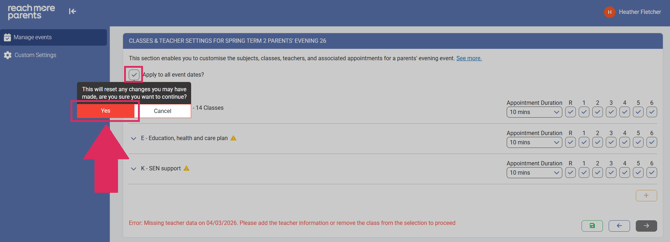
2) If you need to configure different settings across your Event Date(s), de-select the "Apply to all dates" setting and click "Yes" to agree to resetting any changes made so far.
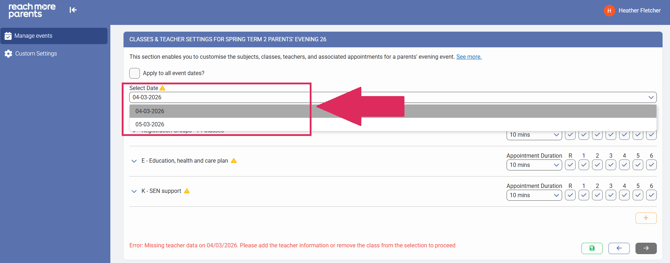
3) Select the date you would like to configure the settings for (if not applying to all dates).
4) Click on "Expand All" if you need to review the Groups within your Registration Groups/Subjects.
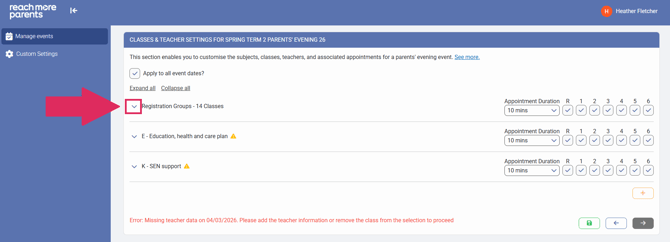
5) To remove a specific Year Group from a Registration Group/Subject, click on the Year Group check mark to remove it.
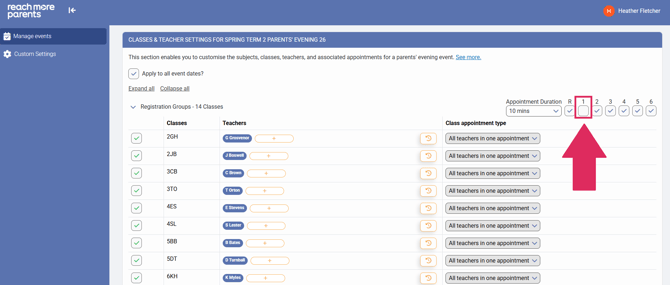
6) To remove a specific Class Group from a Registration Group/Subject, click on the Class Group check mark to remove it.
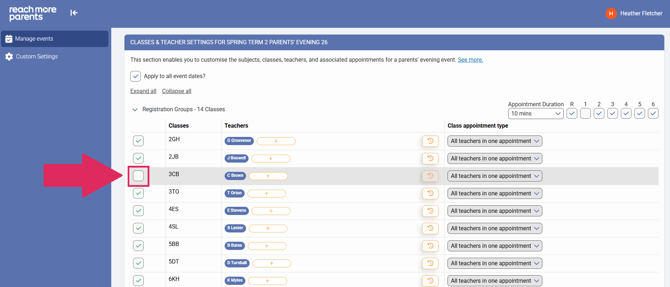
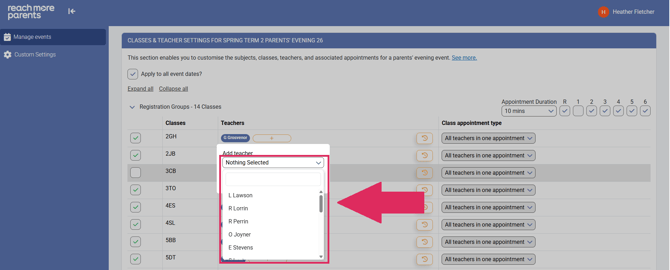
7) If you need to add a new Teacher to a Class Group, click on "+" in the Teachers section to "Add Staff" to that Class Group/Subject.
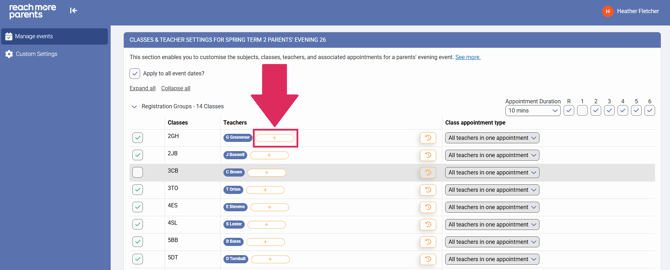
8) Click on the drop-down and select the teacher you wish to add.
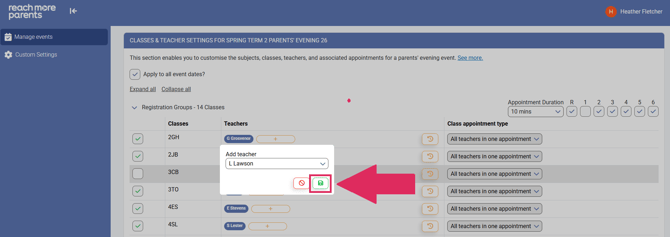
9) Click on "Save" when you're finished.
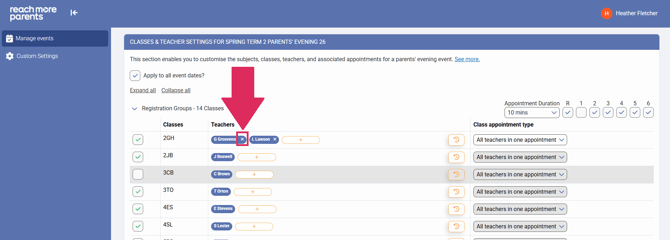
10) If you need to remove a Teacher from a Class Group, you can do this providing at least two teachers are listed next to the Class Group. Simply click on "x" against the Teacher's Name to remove them.
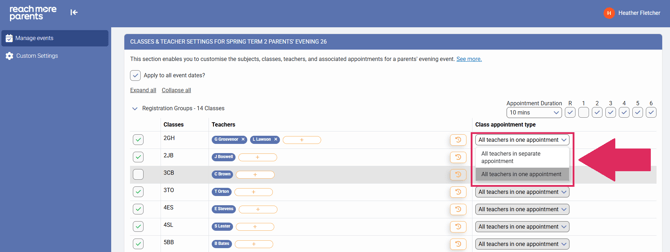
11) If you have multiple teachers for a Subject/Class Group, choose whether the parent is booking an appointment with "All teachers in one appointment" or "All teachers in separate appointments" with the "Class appointment type" selector - This will change how the "Generate bookings" feature works when the Parent books their appointments in the app.
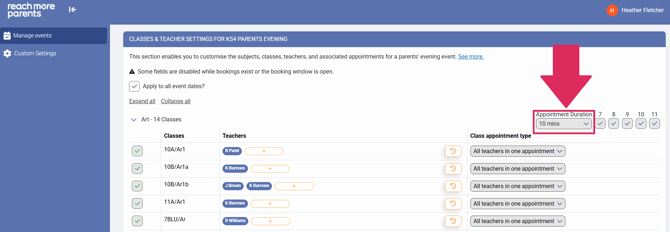
12) If you need to customise the duration of a specific Class Group's/Subject's appointment length, click on "Appointment duration" against that Class Group/Subject to amend the duration for it.
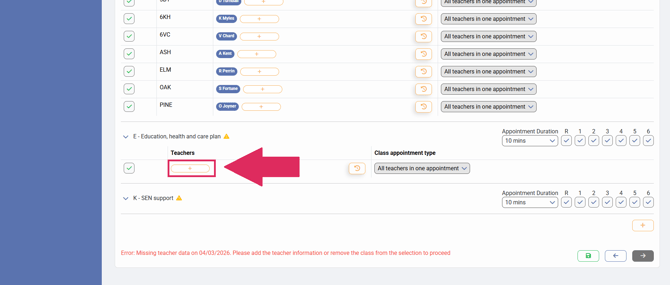
13) For any automatic Custom Classes, such as "House Groups" or "SENDCO" appointments, you will need to assign a staff member to attend those appointments if you would like to invite parents to meetings for these groups.
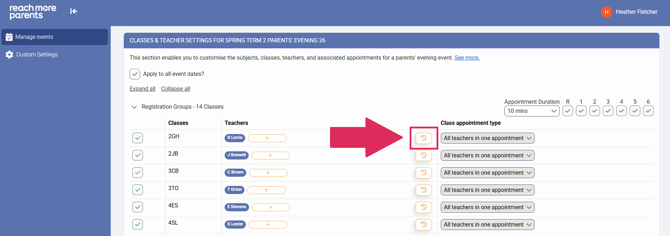
14) To restore the staffing defaults that were initially captured from your MIS, click on the "Restore default staff" against the relevant Subject/Class Group.
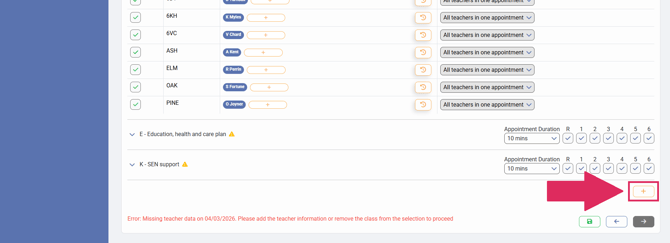
15) If you need to add a Custom Class which isn't accounted for automatically by PEMS, you can click on the "+" to "Create a Custom Class" - For details on how to configure a custom class group, follow this link to learn more.
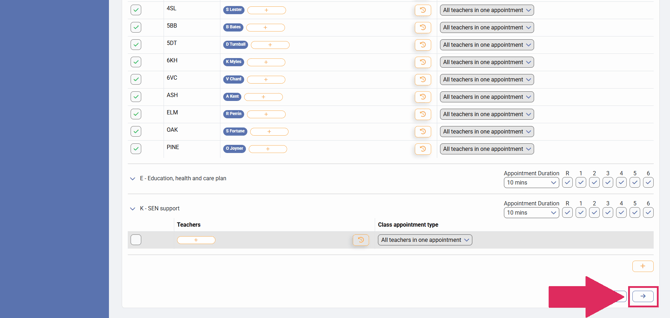
16) When you're finished configuring your Classes & Teacher settings, click on "Next" to proceed to the next screen.