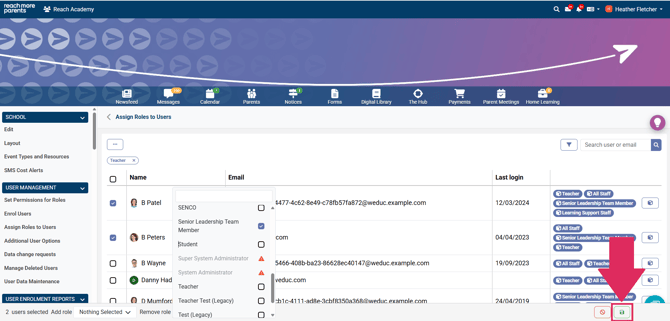
Users can have more than one role assigned to them.
For a summary of each of the standard roles and what they allow a user to do - click here.
Some roles are assigned automatically, such as the Parent / Carer, Student and All Staff roles. Other roles must be assigned manually.
You can find instructions for both assigning a role to a user, and removing a role from a user below:
For assigning a role to a user:
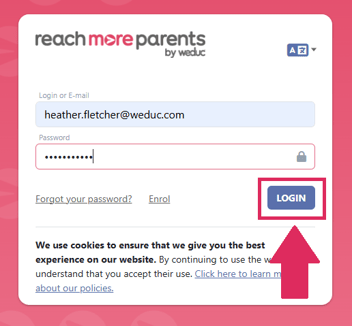
1) Log in to ReachMoreParents.
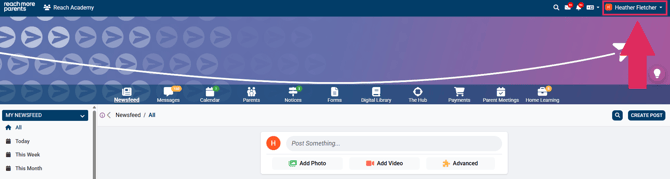
2) Click on your name in the top right hand corner.
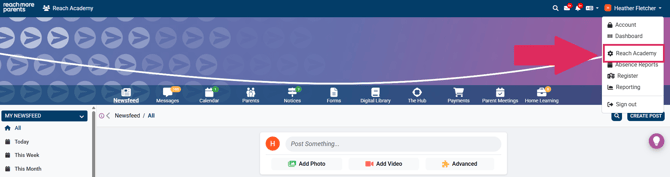
3) Click your school name to access the admin menu.
4) Click Assign Roles to Users under the User Management section
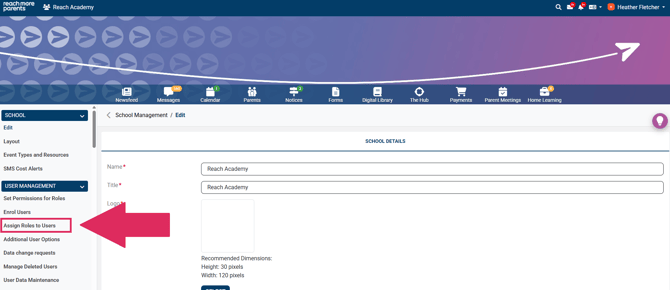
5) Click the filter button to filter by Role or click into the Search bar to search by a User's name or email address.
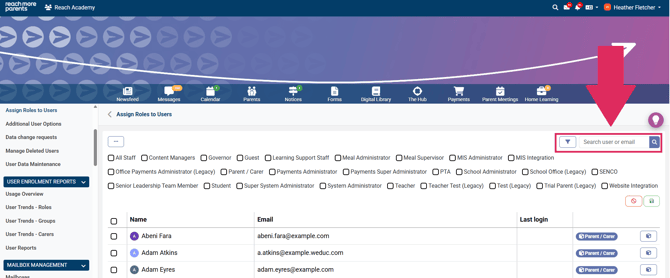
a) If you are using the filter button, you must tick the role you wish to filter by, and click the save button to apply that filter.
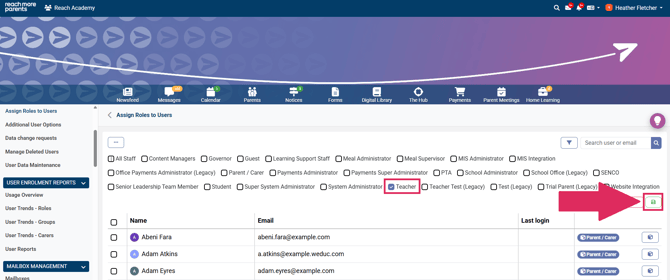
b) If you are using the Search bar, you must type the name or email address of the user, and click the magnifying glass icon to search.
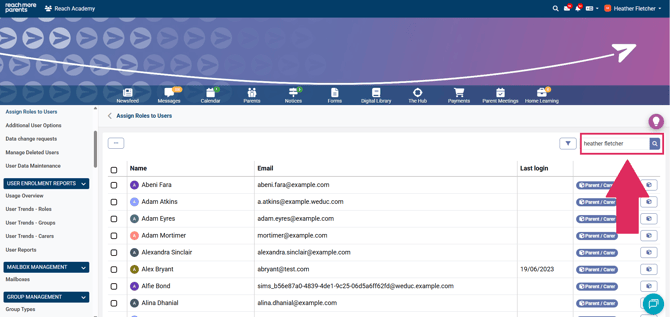
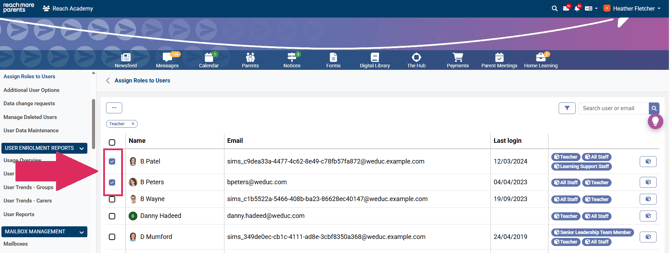
6) Tick the tick-box next to a user's name. Repeat this for all users you are assigning the role(s) to.
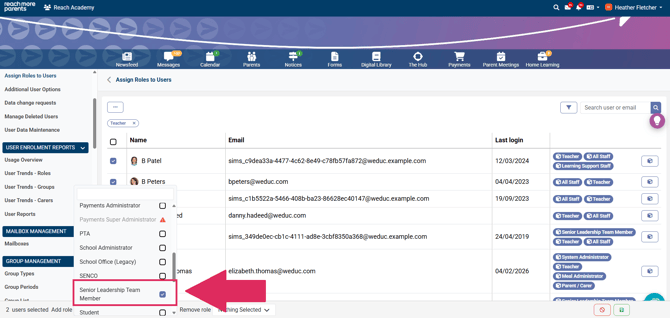
7) Click the drop-down menu next to 'Add Role' at the bottom of the page.
It will initially say Nothing Selected.
8) Tick the Role(s) that you would like to assign to the selected users.
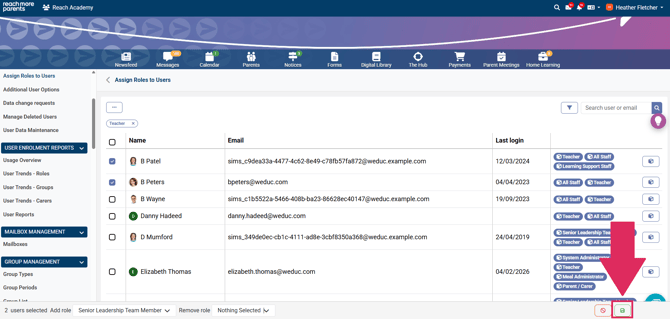
9) Click the Save icon.
For removing a role for a user:
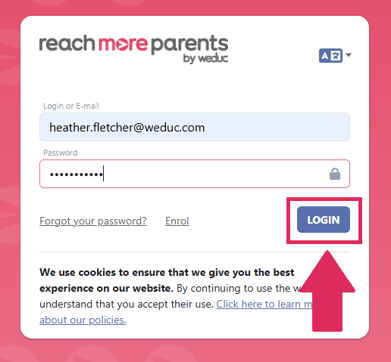
1) Log in to ReachMoreParents.
2) Click on your name in the top right hand corner.
3) Click your school name to access the admin menu.
4) Click Assign Roles to Users under the User Management section
5) Click the filter button to filter by Role or click into the Search bar to search by a User's name or email address.
a) If you are using the filter button, you must tick the role you wish to filter by, and click the save button to apply that filter.
b) If you are using the Search bar, you must type the name or email address of the user, and click the magnifying glass icon to search.
6) Tick the tick-box next to a user's name. Repeat this for all users you are removing the role(s) from.
7) Click the drop-down menu next to 'Remove Role' at the bottom of the page.
It will initially say Nothing Selected.
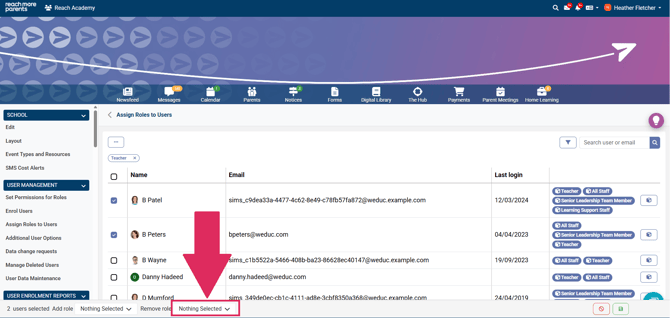
8) Select the Role you would like to remove from the selected users.
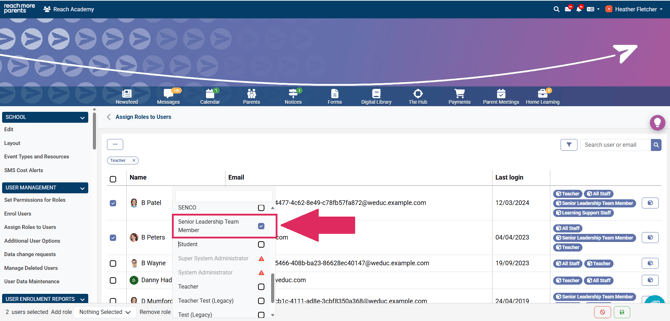
9) Click the Save icon.