
Creating a Manual User Group
This article will guide you through creating a manual user group in your ReachMoreParents platform. If you need to communicate with a group that isn’t available in your MIS, and therefore doesn’t automatically sync to your platform, you can create a manual group to target content to a specific set of parents by following the steps below.
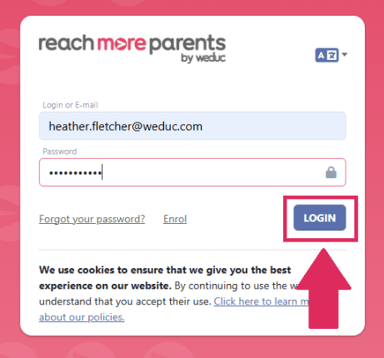
1) Login to ReachMoreParents.
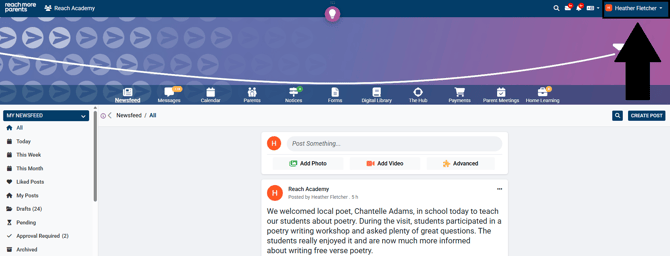
2) Click on your name in the top right hand corner.
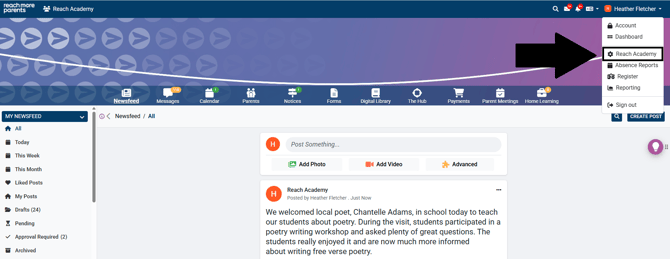
3) Click your school name to access the administration menu.
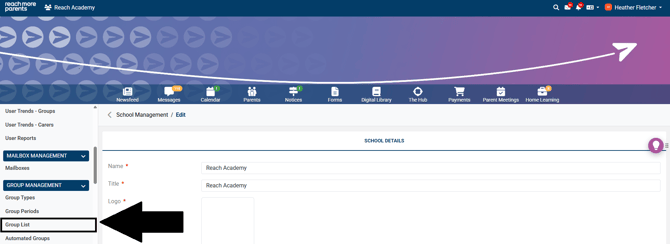
4) Click Group List under the Group Management menu.
5) Click Add to begin creating your group.
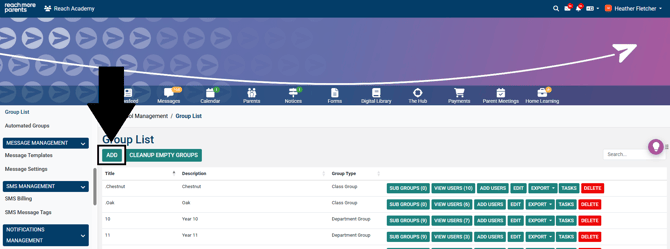
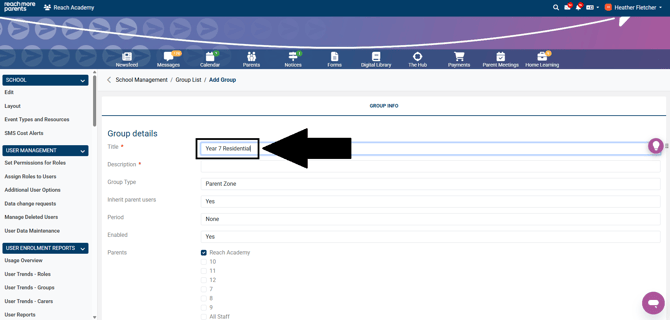
6) Type a group title.
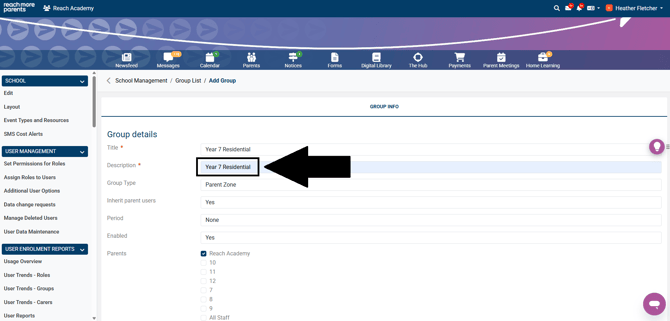
7) Type a description. To keep this simple, you can copy and paste the title into the description field.
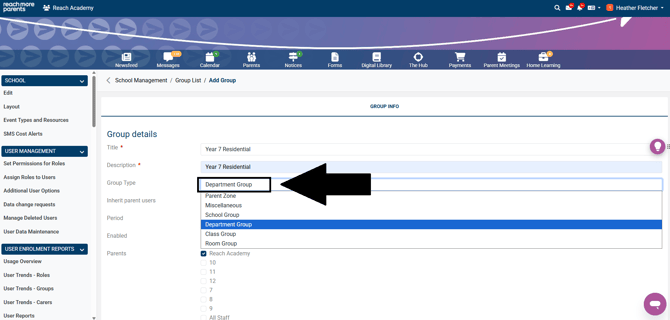
8) Click on the Group Type and set it to either Department Group or Class Group.
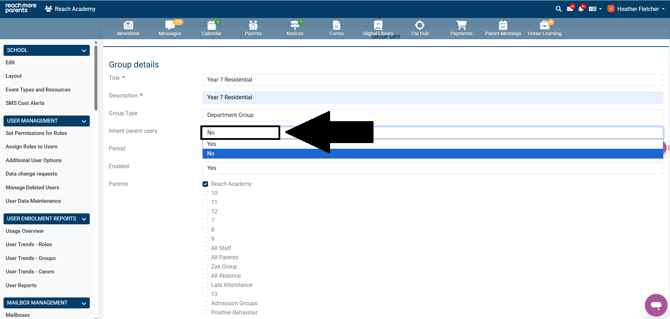
9) Click on Inherit Parent Users and change this to No. This will prevent every parent user from automatically importing into your group, allowing you to specify which users to add at a later stage.
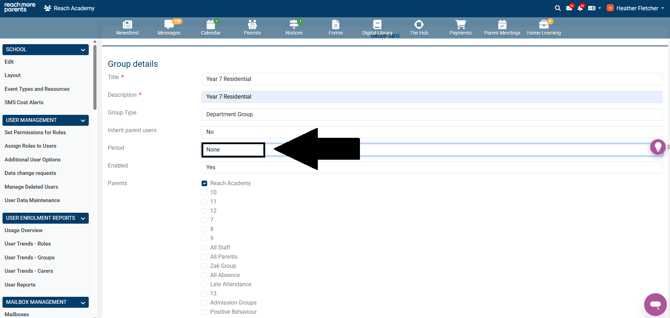
10) Ensure that Period is set to None (this should be set to 'None' by default).
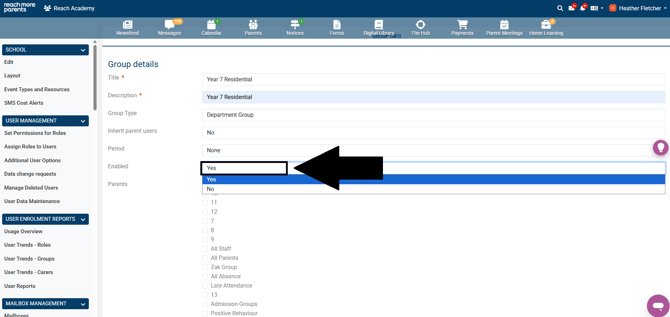
11) Ensure that Enabled is set to Yes (this should be set to 'Yes' by default).
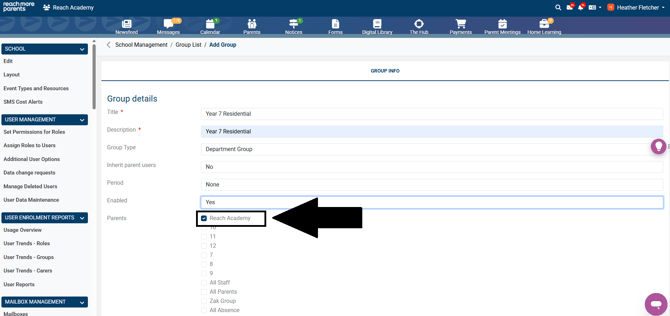
12) Ensure that your school name is ticked against the Parent field (your school name should be selected by default).
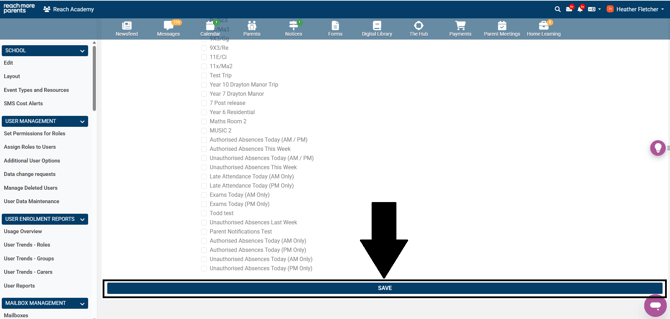
13) Scroll to the bottom of the page and click Save.
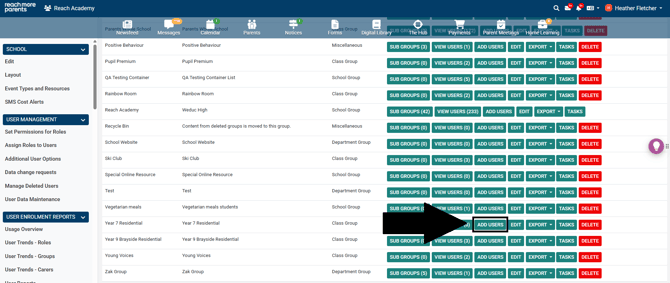
14) Once the system has navigated back to the Group List page, locate your group in the list then click the Add Users button next to it to begin the process of populating your group.
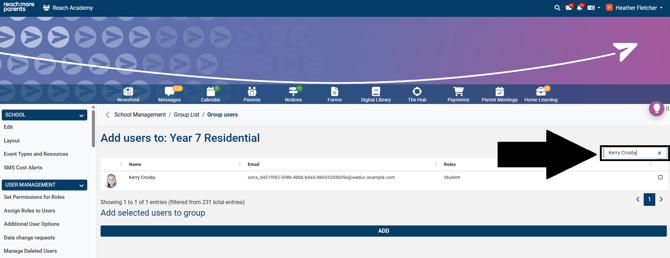
15) Using the Search bar, type the name of a student you would like to add to this group.
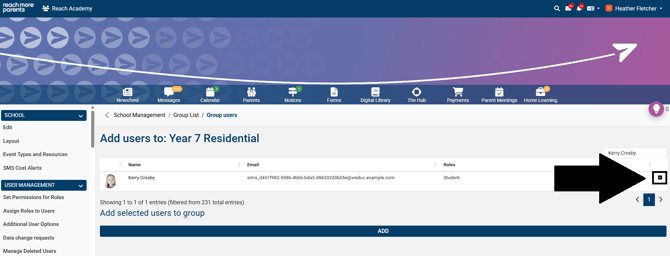
16) Place a tick next to the student's name by clicking in the box on the right hand side of the screen.
17) Click Add to add the student to the group.
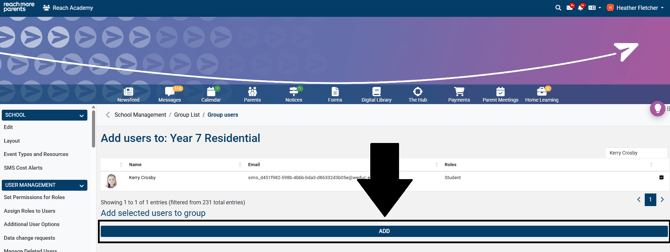
18) Repeat steps 15-17 until you have added all the relevant students to your group.
Your group is now successfully added to your ReachMoreParents platform.