Bulk enrolling users by role/group
This guide explains the process of how to enrol whole groups of staff or parents/carers e.g. when launching ReachMoreParents for the first time or at the start of a new academic year.
Important notice: Product update changes!!!
This is a new knowledge base article. This article replaces previous guidance since a recent product update aimed at simplifying the enrolment process which is due for release 28th August - PM.
What is enrolment?
Enrolment is the process of enabling new users to create their personal log-in for ReachMoreParents and inviting Parent users to the mobile app and staff users to our desktop platform.
Who can enrol users?
Current school staff members with System Admin permissions can enrol new Parent and Staff users. If you cannot view any of the settings or menu options shown in the instructions below, please contact your schools System Admin.
When to Enrol by role type (Target all users within a selected role type)
- Select this when launching ReachMoreParents for the first time or at the start of a new academic year.
When to Enrol by user (Select specific individuals you wish to enrol)
- Select this when new parents need app access or staff join the school throughout the year.
-
For further options, please see our Enrolling individual/single users article.
How to enrol all staff/all parents and carers
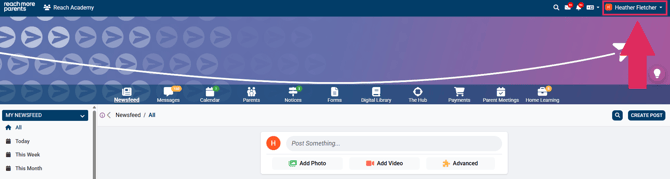
1. Log into ReachMoreParents and click on your name (Profile Menu) in the top right corner of the home/newsfeed screen
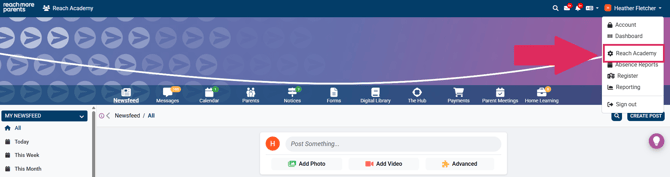
2. Select the school name from the drop down menu.
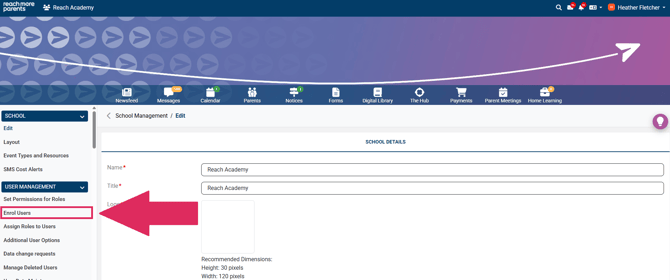
3. Go to the menu of the left side of the screen. Locate the 'User Management' section and then click on the 'Enrol Users' link below.
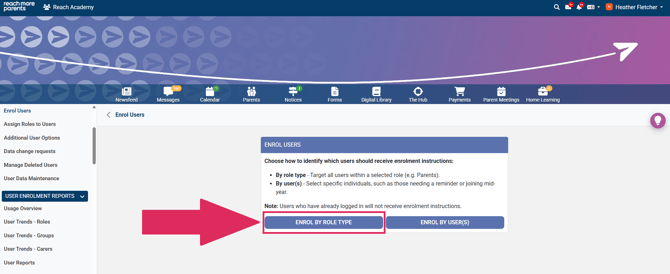
4. You will see an explanation of your two options for enrolling staff or parent/carers. Click the 'Enrol By Role Type' button.
5. You will be asked to select the role types you want to enrol. If either role type has a red exclamation mark next to it, hover over the exclamation mark and follow the instructions that appear before proceeding.
If the staff role has an amber exclamation mark next to it, when you hover over the icon it will explain that some staff roles are not able to login to the app and can't be enrolled. You can still continue to enrol those who have been enabled and can follow the instructions that appear to see which roles are affected.
6. Click the tick box next to the role type(s) you wish to enrol. This will enrol all staff or all parents/carers in the school.
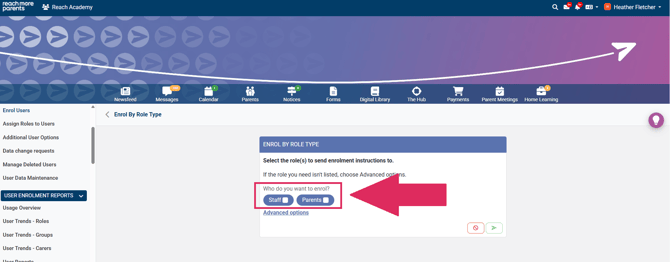
NOTE - If parents/carers are already enrolled, they will not receive another enrolment message. You can therefore use this option to chase parents who are yet to enrol on the app.
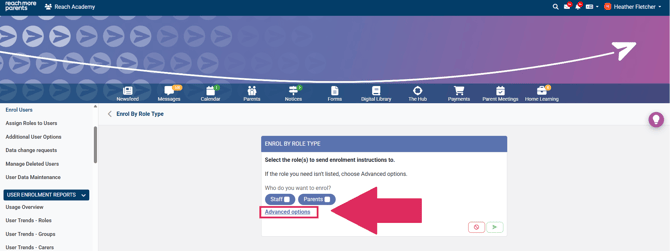
7a. If you do not wish to enrol all parents/carers (e.g. launching the app to specific year groups or enrolling new Reception/Year 7 parents) or you wish to enrol students, please click on 'Advanced Options'.
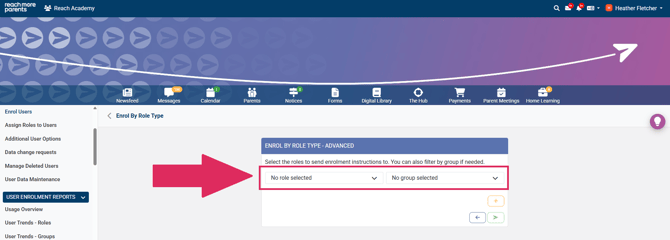
7b. On the following screen, select the roles and groups you wish to send enrolment messages to. Click the yellow + button if you wish to enrol multiple roles/groups.
8A - Enrolling by Email (default)
By default, enrolment messages are sent via email. This is to ensure mistakes aren't made with users entering another user's code and it's free to send!
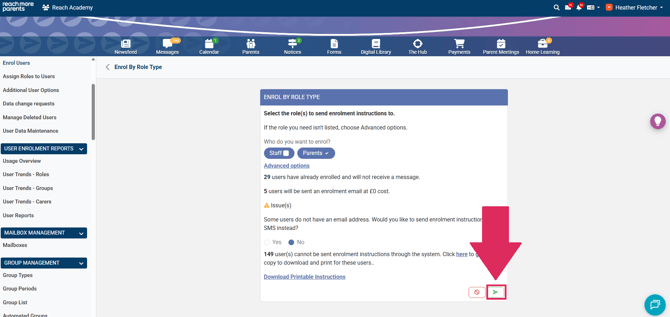
After selecting the users you wish to enrol, if no further messages appear press the green arrow to complete the enrolment process.
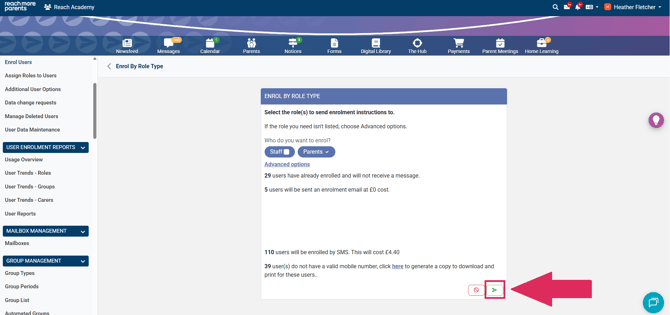
If a message pops up saying users do not have a valid email address, you will need to look at alternate methods of sending the enrolment code (such as SMS and letter, explained below)
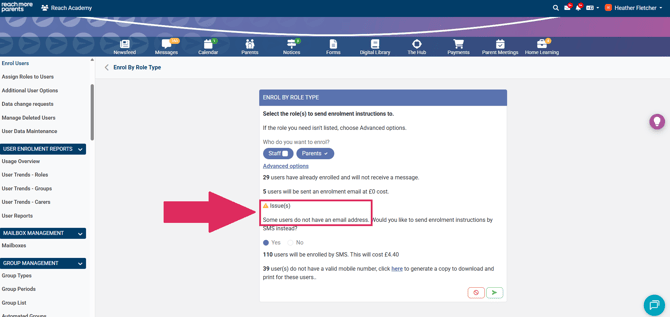
8B - Enrolling by Text (SMS)
If users don't have a valid email address, you will be asked if you want to send the enrolment message via text message (SMS).
We do not recommend it as a default method of sending enrolment messages due to the cost.
However, for those users without a valid email, it may be preferable over sending letters with enrolments home.
If you select yes, an on-screen message will inform you how many users will be enrolled this way and the cost of this.
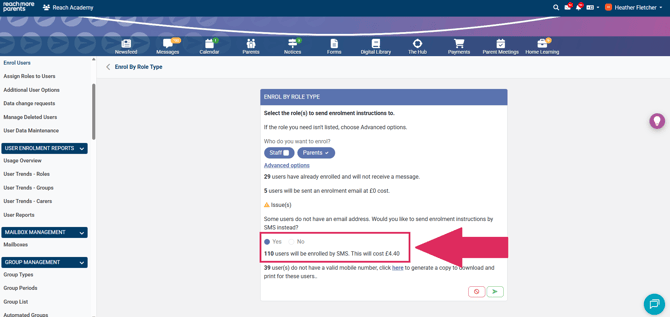
If all remaining users can be enrolled via mobile, you will see a message saying no users do not have a valid mobile number. You can then press the green arrow to complete the enrolment process.
6C - Enrolling by Letter
If you choose not to send enrolment instructions via SMS, or if you do not have valid telephone numbers for users, you will need to print enrolment letters. We do not recommend letters as the default method of sending enrolment messages as these can easily be lost or parents can mix up codes and merge their accounts. However, for those users without a valid email, it may be preferable to text (SMS) due to the costs.
Click the 'here' link to download the enrolment letters to be printed.
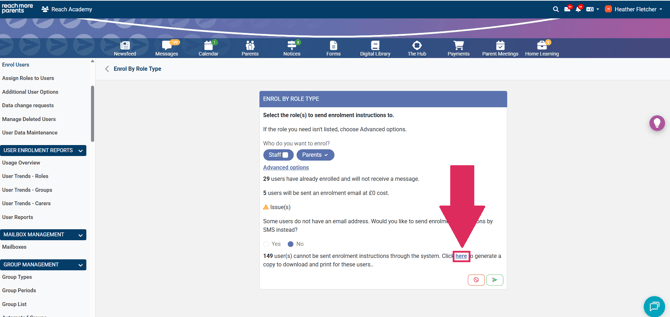
Then click on the "Download Printable Instructions" button when it becomes available to download to your local downloads folder to be printed in your PDF app.
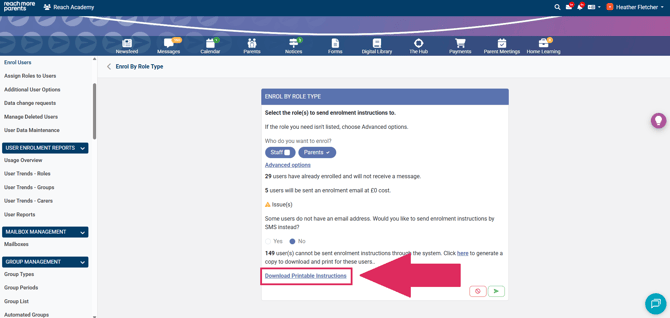
Click the green arrow to send the enrolment messages.
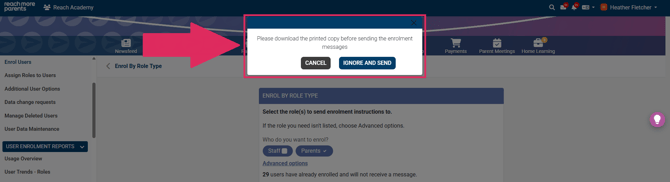
If you didn't generate the printed copies as you should have done, you will be prompted in the below confirmation screen to return and generate the prints. Click cancel and return to do this.