
Why are mailboxes useful?
Mailboxes are useful when sending or receiving messages for a particular department of the school, such as the school office or school finance team as the mailbox can be monitored by multiple people at the same time, and messages can be sent on behalf of a whole department, rather than a staff member's personal mailbox.
Who is this guide for?
System administrators should use this guide, as they have overview of the entire system and are best placed to decide who has access to mailboxes.
Please note, this guide is only for adding users to an existing mailbox. If you wish to create a new mailbox, please follow this guide - How to create a new mailbox
How to add a role to an existing mailbox
-
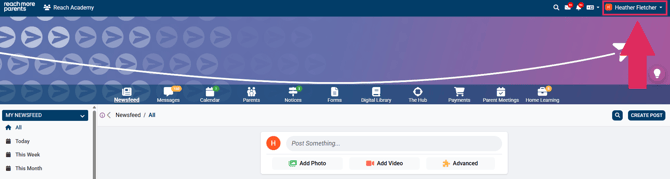
Click on your name in the top right corner.
-
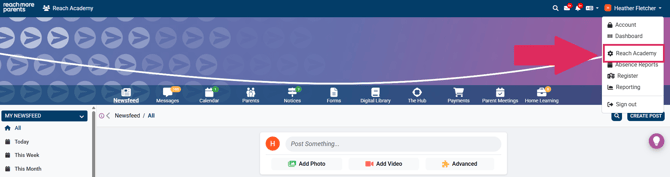
Click on the cog icon to open the administration menu.
-
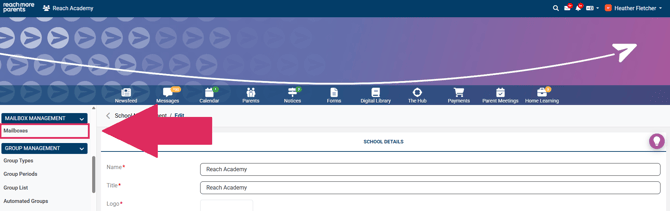
On the left side menu, select 'Mailboxes' under the 'Mailbox Management' menu.
-
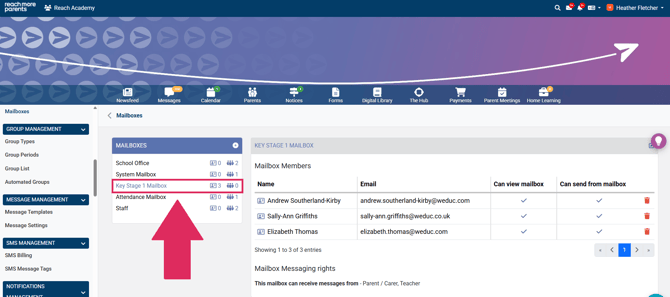
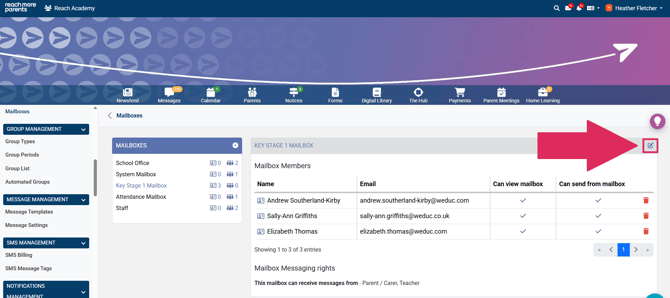
Select the mailbox you wish to add the users to from the 'Mailboxes' list.
-
Click the pencil icon on the top right of the Mailbox information panel.
-
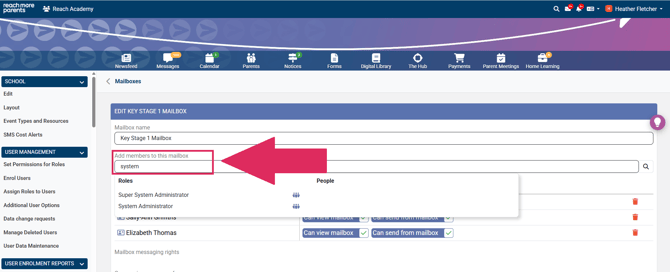
Search the role name in the 'Add Members to this Mailbox' field and select the role you would like to add when it appears in the drop down list.
-
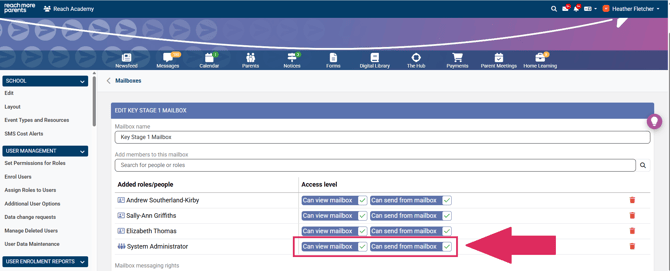
Update the sending permissions for this role to enable them to view and/or send messages within this mailbox.
-
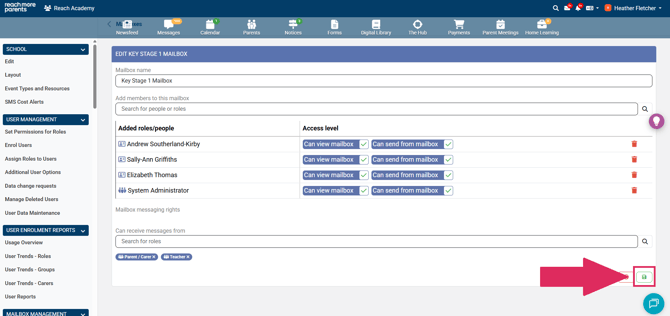
Click the green Save icon in the bottom right corner to save your changes to this mailbox.
How to add individual users to an existing mailbox
-
Click on your name in the top right corner.
-
Click on the cog icon to open the administration menu.
- On the left side menu, select 'Mailboxes' under the 'Mailbox Management' menu.
- Select the mailbox you wish to add the users to from the 'Mailboxes' list.
- Click the pencil icon on the top right of the Mailbox information panel.
- Search the individual's name in the 'Add Members to this Mailbox' field and select the user you would like to add when they appear in the drop down list. Repeat this step for as many individuals that you need to add.
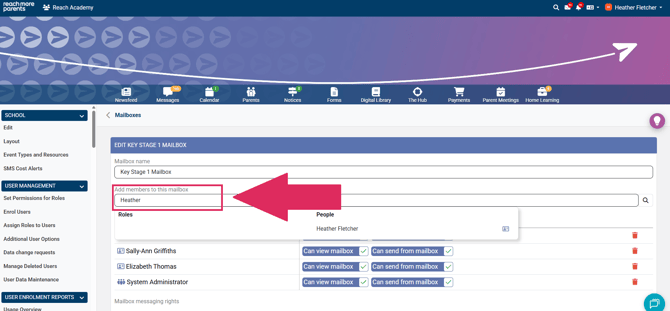
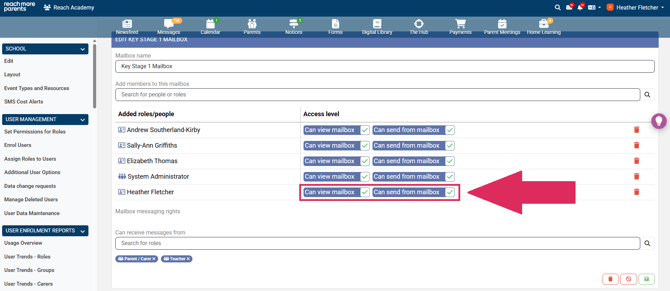
- Update the sending permissions for this role to enable them to view and/or send messages within this mailbox.
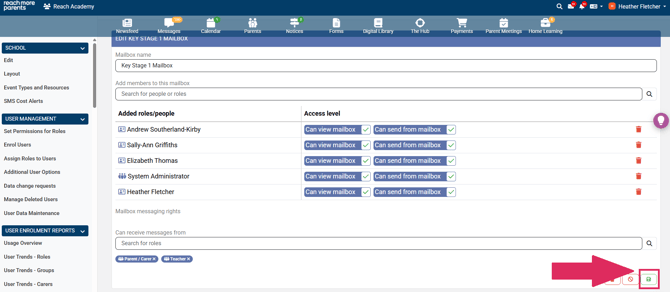
- Click the green save icon in the bottom right corner to save your changes to this mailbox.
Adding / Removing which roles a mailbox can receive messages from
-
-
Visit this short video here to complete this step
-